

Report purchases with the Kleer card
How to report purchases with the Kleer card: the purchases show up in Kleer right away, and you match a receipt to each purchase and submit.
With the Kleer card, your purchases show up in Kleer right after you have paid. You do not have to type in any amounts, just match a receipt to each purchase and submit.
This page covers what is special about the Kleer card. How to send in receipts, what the fields mean and how to submit are described in Report expenses.
How your card works
The Kleer card is issued by Kleer together with Mynt. There are two kinds of card, and you report the same way with both:
- The company pays the invoice. You report the purchases so that the company has receipts for everything charged to the card. If you cannot show a receipt for a purchase, it may be deducted from your salary.
- You get the invoice and pay it yourself. The purchases you report are paid out to you with your salary, so that you have the money when the invoice is due. The company pays the card’s annual fee. If you have made a purchase by mistake that does not belong to the company, you can delete it yourself.
If you are not sure which card you have, ask whoever manages the company cards in your company.
When do the purchases show up in Kleer?
Right after the purchase. On the web you find them under Expenses > Manage expenses, in the app under Expenses > Card transactions to report.
Do you not see any purchases at all? Ask whoever manages your company cards to contact your Kleer consultant.
Report a purchase, step by step
The purchases waiting for a receipt are at the top of Expenses > Manage expenses, under the heading New card transactions. They are sorted by month, and the latest purchases are on the Latest tab.
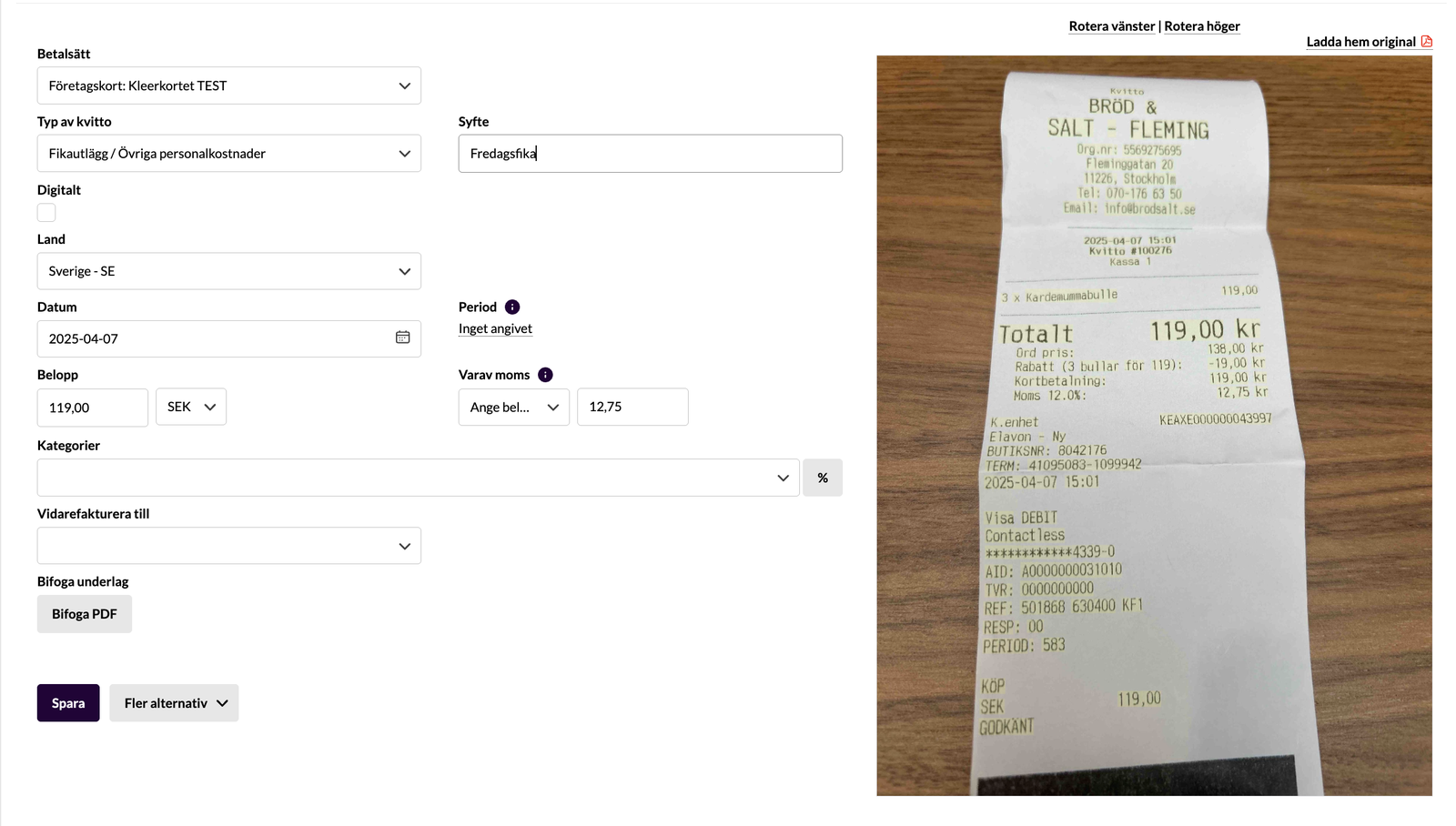
- Send in the receipt, preferably right after your purchase. See Send in the receipt.
- Click the purchase in the list.
- Choose the receipt that belongs to the purchase. Kleer has often matched the right receipt already. Under each receipt image you see the date, amount and supplier, and you can search the receipts in the search box above them.
- Fill in what is missing, see Fill in the details.
- Save.
Kleer fills in some fields for you: Payment method (your card, cannot be changed), Date and Amount.
When you save, the purchase moves from the Not handled filter to Handled, and the receipt ends up under Entries to be submitted. Do not forget to submit it afterwards.
Reserved purchases
When you pay with the card, an amount is reserved first. The final amount is charged to the card a little later, usually within a day. This is called the purchase being settled. Sometimes the amounts differ:
- Filling up the car. The petrol station reserves SEK 1,500 when you insert the card, but then only charges what you filled up for, for example SEK 714.28.
- Purchases in another currency. A baguette in Paris for EUR 3.50 is reserved as SEK 37.34, but after a day or so the exchange rate has changed and SEK 35.02 is charged.
- Something is removed from an order. A laptop and a stand reserve SEK 12,000, but the stand is out of stock and is removed. What is charged becomes SEK 11,250.
That is why you cannot submit a purchase until it has been settled. A reserved purchase has a yellow row, and the row turns white when the purchase has been settled.

Sometimes it takes several days, and in exceptional cases a purchase is never settled. Then contact your manager or whoever manages Kleer in your company.
Automatic filling for recurring purchases
If a purchase has exactly the same description as a purchase you have reported before, Kleer fills in the same details as last time:
- Type of receipt
- Country
- VAT rate
- Categories, including any split
Kleer also recognises common recurring purchases from, for example, Facebook, LinkedIn and Google, even when the reference is new each time. “FACEBK Z65TPQ6642” is therefore treated as the same purchase as “FACEBK 32X95VFDG3”.
Helping someone else with their card purchases
Whoever manages the company cards can give you the right to handle the purchases on someone else’s card, for example if you are an assistant who takes care of the receipts.
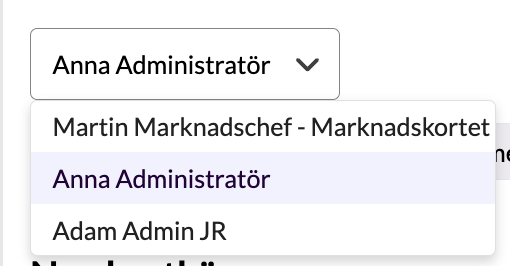
Go to Expenses > Manage expenses and choose the cardholder in the drop-down list. The card’s name is shown after the person’s name. You only see the purchases on the cards you have been given the right to.
You can upload receipts and match them to the purchases. The journal is submitted by the cardholder, their manager or someone who administers all expenses in the company.
If you manage the company cards and want to give someone that right, see Kleer-kortet, för dig som administratör (in Swedish).
FAQ
Why do I get several push notifications about the same purchase?
If you have added the card to Apple Wallet or Google Wallet, the Wallet app also sends notifications about purchases. Turn off the notifications for the card in the Wallet app, and you only get the notification from the Kleer app.
I want to delete a card transaction, how do I do that?
This is only possible for purchases with a personal card. Click the purchase, choose More options and then Delete.
I deleted a card transaction by mistake, how do I get it back?
Go to the tab for the month the purchase was made and click the Handled filter. The purchase is crossed out. Select it and click Undelete card transactions. Then report it as usual.
Related guides
- Report expenses, the basics: sending in receipts, the fields and submitting
- Kleer-kortet, för dig som administratör (in Swedish), for those who manage the company cards