

Get started and administrate authorisation flows for supplier invoices
Guide for Finance Managers regarding how authorisation flows work and are administred in Kleer
A supplier invoice route through Kleer

Approval
The first step in the process of handling an incoming supplier invoice is called approval.
This step is usually done by the person who has bought something for the company. A check to make sure what has been ordered also has been delivered according to agreement.
The approver is appointed in the following order of priority;
- The user who is stated as Your referens on the invoice.
- The user who is stated as Your reference in the supplier register.
- The user who is manually sent the invoice by an administrator.
- All users in Kleer can be approvers.
- Approval is done before authorisation and it is not included in the authorisation flows that are created.
Authorisation
Once the approval has been made the invoice will be sent to the first person in the authorisation flow for authorisation.
This step is usually done by persons who have the right to accept a cost in the company. They assure that the amount is within budget and that they are willing to accept the cost.
The authorisation flow is appointed in the following order of priority;
- The authorisation flow that is stated in the supplier register.
- The standard authorisation flow.
- The authorisation flow that is manually chosen on an invoice.
- Only users with the permission “Finance Manager” or “Authorise own and my team’s supplier invoices” are able to authorise supplier invoices.
- The supplier invoice is sent to one person at the time according to the order set up in the chosen authorisation flow.
- If the user that has approved the invoice is included in the chosen authorisation flow he/she will be skipped over and the invoice will be sent for authorisation to the next person in line.
- In order for the invoice to be fully authorised it is required that minimum two different persons have approved/authorised and that the authoriser has sufficient amount limit.
- The invoice will continue in the authorisation flow until this is fulfilled. Then it will stop and be fully authorised. Any following persons in the chosen authorisation flow will not be involved.
Booked/fully authorised
The supplier invoice will be fully authorised and booked once a person with sufficient amount limit has made their authorisation.
Payment
Once the supplier invoice has been fully authorised it will appear in the menu under Pay. It is visible for users with payment permission and they can now pay the invoice.
1. Permissions
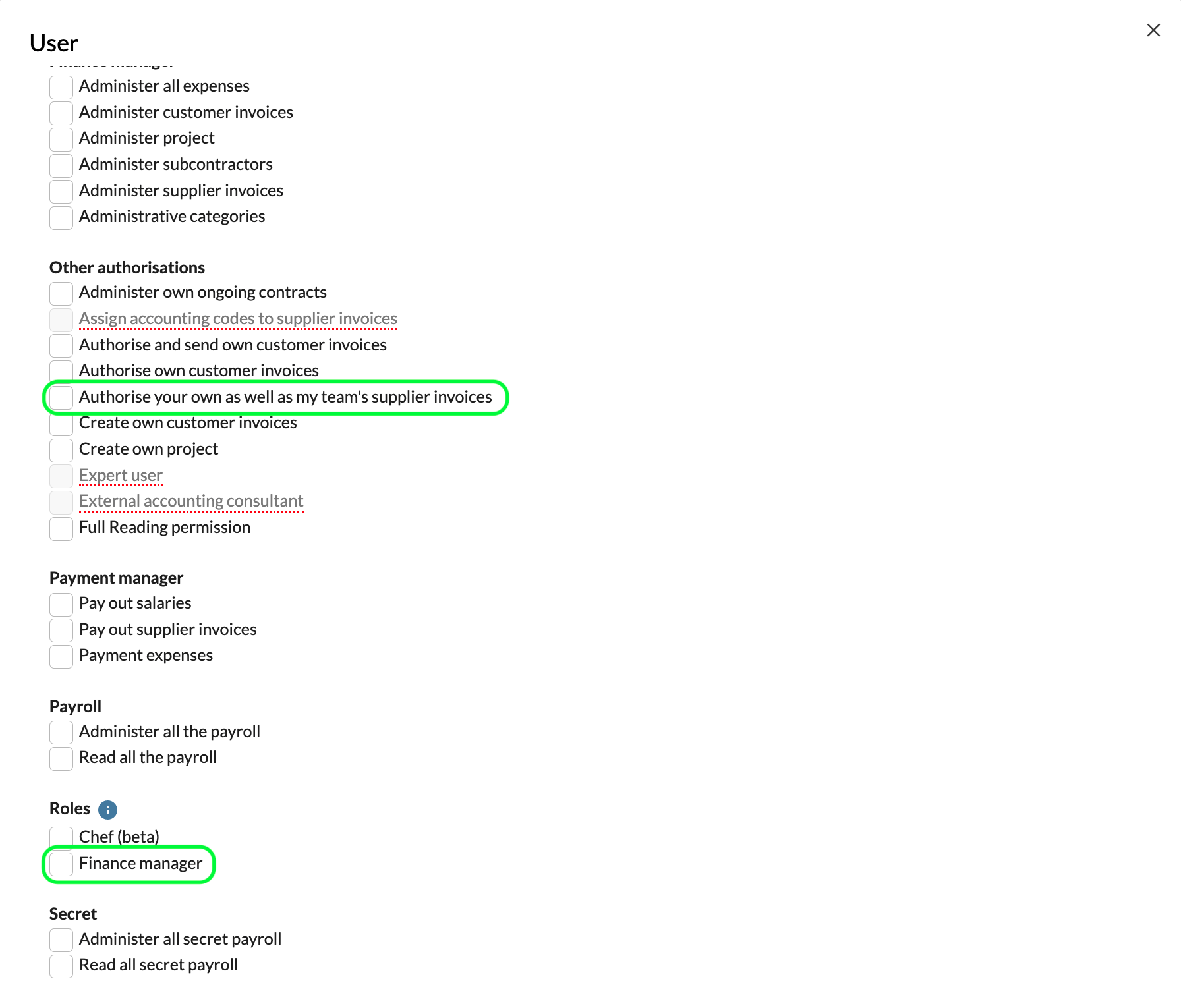
Give users who should be able to authorise supplier invoices the correct permission. It is required to have the permission “Finance Manager” or “Authorise own and my team’s supplier invoices”.
Users who should only make approvals do not need any extra permission.
2. Limit amount
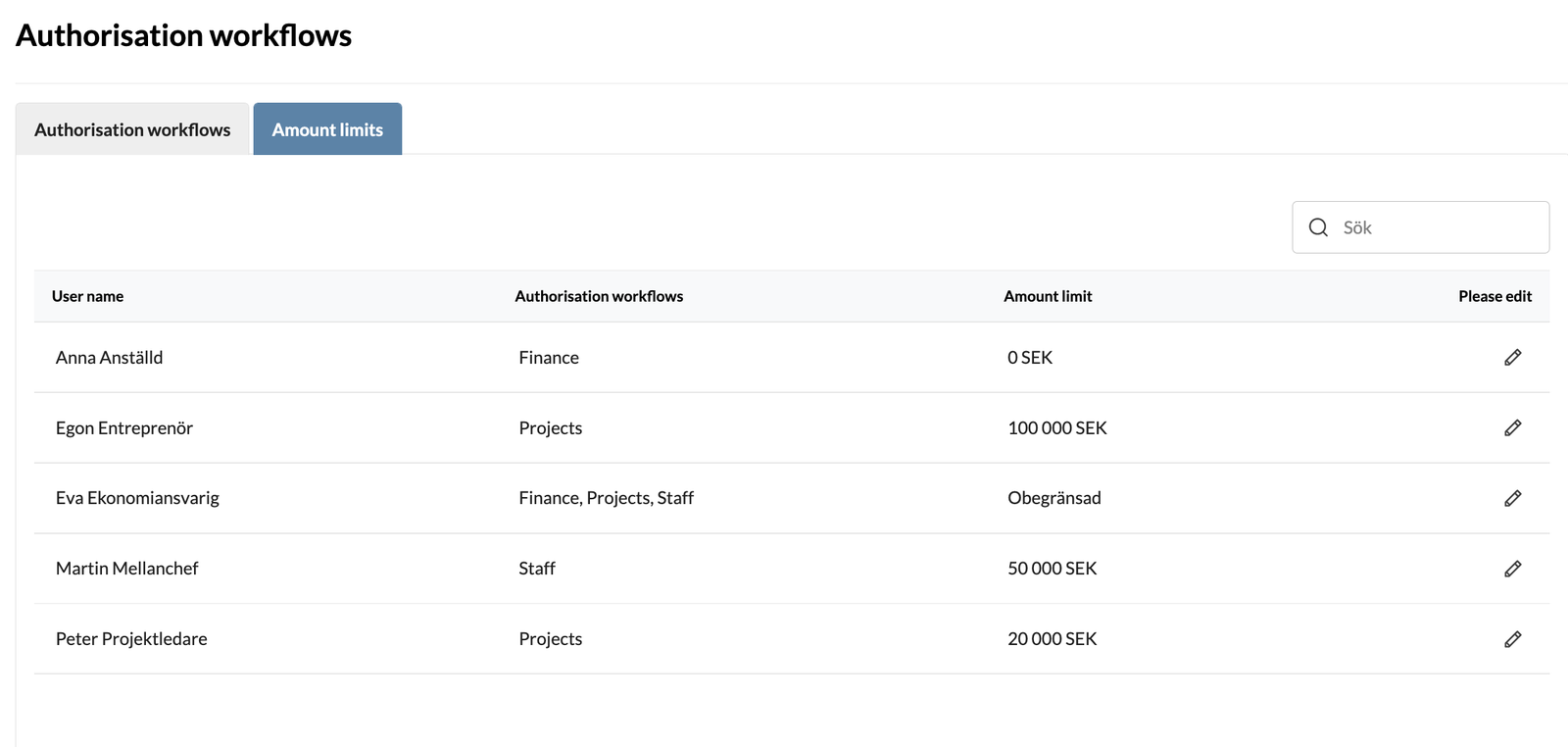
Under Settings in the top menu you find the option “Authorisation flows”. In the interface you will se a tab called “Amount Limits”. Enter/adjust the amount limit for each user by clicking the pen icon. https://my.kleer.se/web/secure/settings/supplierinvoicechains.xhtml
If no amount is set the user will have unlimited amount limit. I you would like the user to have 0 SEK please enter “0” in the field.
The limits are also valid for credit invoices. A user with 5 000 SEK limit also has permission to authorise credit invoices up to - 5 000 SEK.
All amounts are incl. VAT.
3. Create authorisation workflows
You create the authorisation workflows in the “Authorisation workflows” interface. You find it under Settings in the top menu.
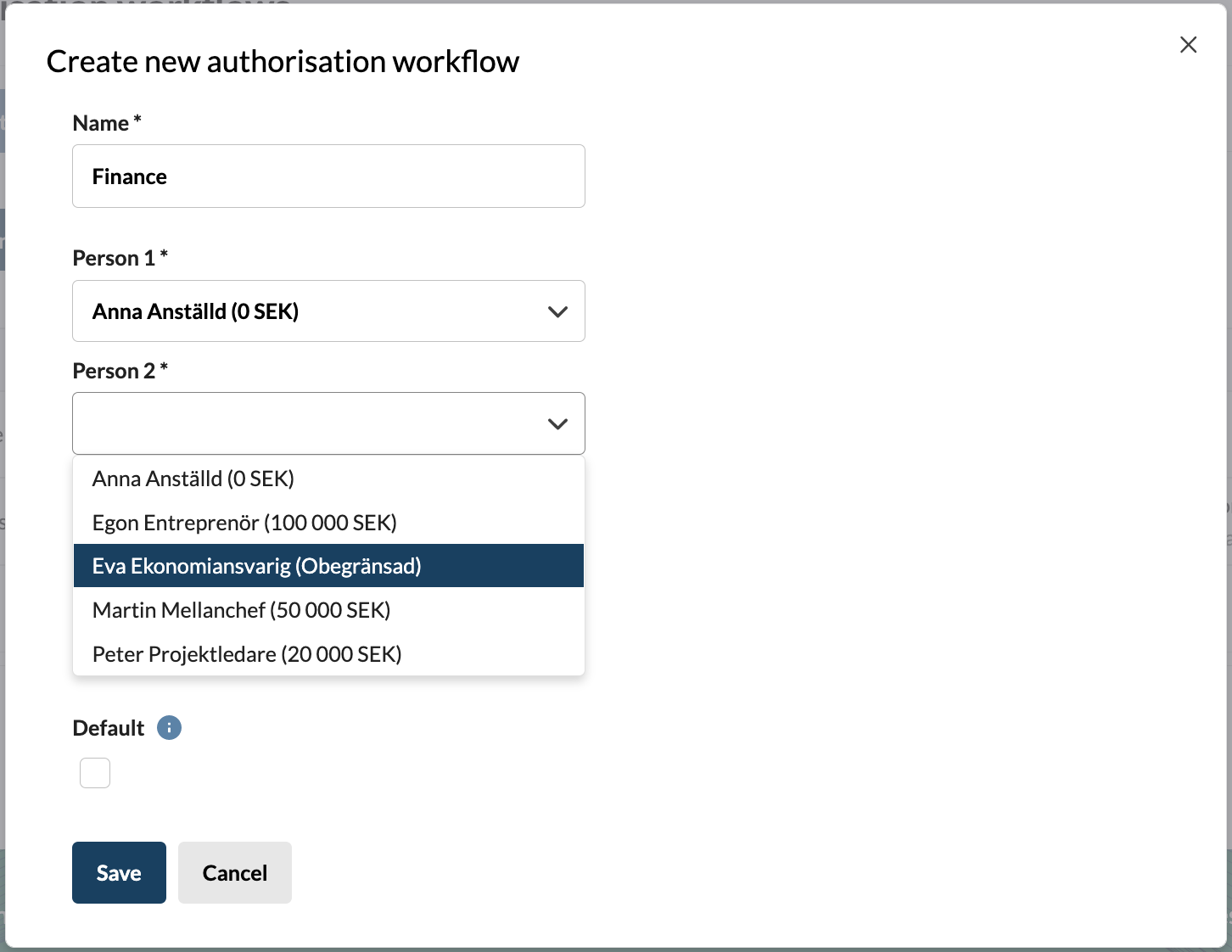
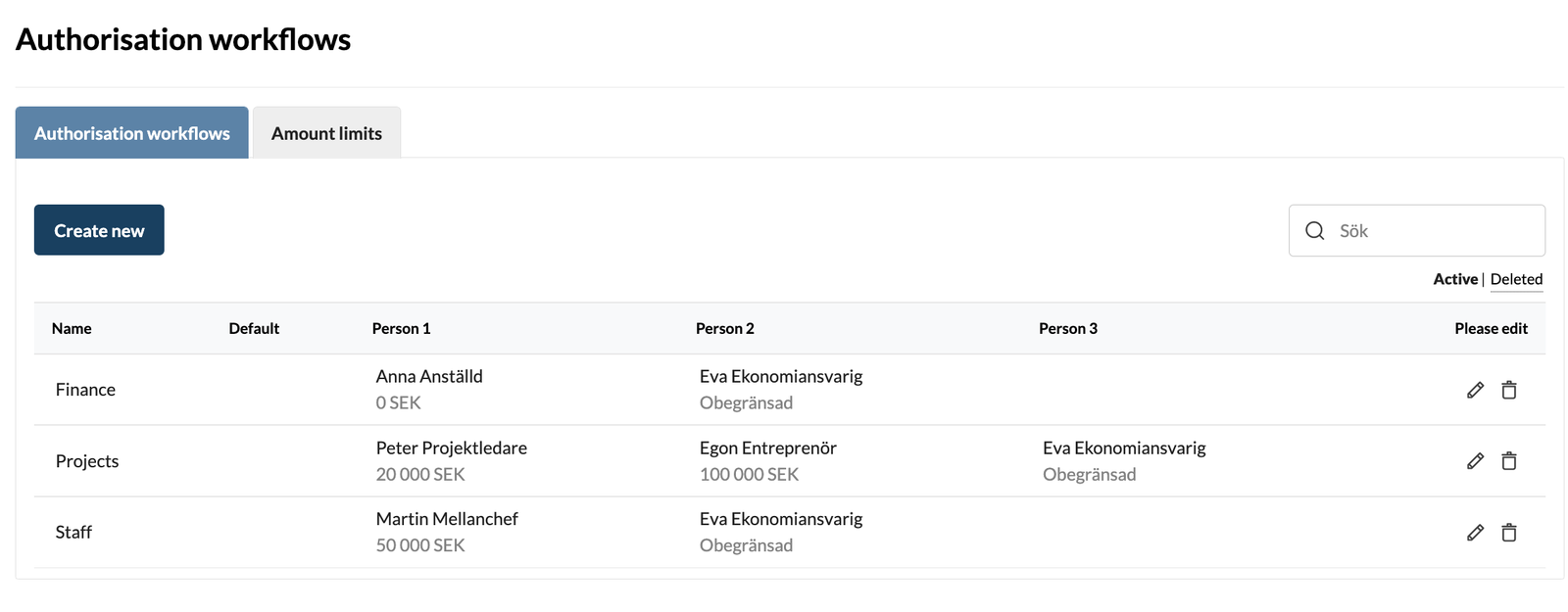
https://my.kleer.se/web/secure/settings/supplierinvoicechains.xhtml
You can whenever you like edit or add more workflows.
Start the process
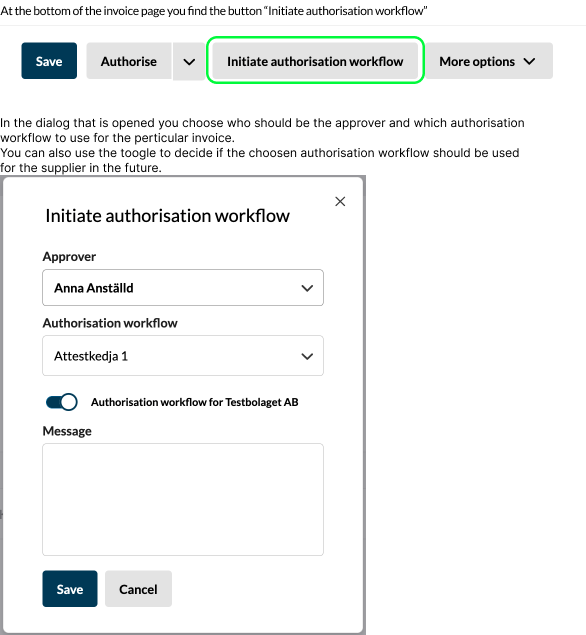
The process starts automatically if you are using the function to forward invoices to Your reference directly when they arrive. Once the user who is stated as Ypur reference has approved it will automatically be sent to the chosen authorisation workflow. If there is not an authorisation workflow chosen the invoice will be shown in the filter “To do” for users with permission to administrate supplier invoices.
Administrators can also start the process manually by clicking the button “Inititate authorisation workflow” and choose a user as approver and an authorisation workflow.
Advice for more automation
- If you have suppliers which invoices should always be handled the same way;
- State a user as Your reference on the suppliers in the supplier register. And make sure you are using the functionality for automatic forwarding to Your reference.
- State which authorisation workflow that should be used on eash supplier in the supplier register. This can also be updated continously by a Finance Manager by using the toggle when sending an invoice, then when the next invoice arrives from the supplier the authorisation workflow is already chosen.
- State one of the authorisation workflows as standard if you have one main workflow. Then it will be sent to that workflow unless there is a supplier specific one.
FAQ
How do I assign an authorisation workflow to a supplier?
In the left hand menu under Supplier invoices you find the Register of suppliers. When you have clicked on a supplier you will see a field for “Authorisation workflow” and in the dropdown you can choose one of your active workflows to be used for the supplier. Only users with the permission Finance Manager can state/change the authorisation workflow in the supplier register.
You may also state which authorisation workflow that should be used for a supplier by using the toggle in the window that is shown when clicking on the button “Start/Change authorisation flow”.
Who can change the authorisation workflow on a supplier invoice?
Users with the permission to authorise supplier invoices can change the authorisation workflow.
Who can change approver on a supplier invoice?
Anyone who has access to the supplier invoice in question can change approver.
What happens if someone changes the authorisation workflow when another one has already started?
If the authorisation workflow is changed the process starts over and person 1 in the new workflow will receive the invoice for authorisation. Any authorisations that have made previously will be considered invalid.
Is it possible for a user to both approve and authorise an invoice?
No, if a user has approved he/she will not authorise the same invoice.
Is it possible for a user to be involved multiple times in handling an invoice?
No. If a user has approved an invoice he/she will be skipped if they are included in the chosen authorisation workflow. Therefore the system demands minimum two people in each workflow to secure there are always at least two different persons that check the invoice before payment.
Is it possible for a user to both authorise and pay a supplier invoice?
Yes. There is no control made unless you have activated the function “Dualitet”. This function will however only check that the last person who authorises is not the same as the payee. This function is activaded by your Kleer consultant.
How many people is included in an authorisation workflow?
How many people that are included in a specific authorisation workflow is up to the Finance Manager who administrates the workflows. Kleer guarantees that the supplier invoice always passes minimum two different people before it is fully authorised and can be paid.
What is an amount limit?
It is possible to, on a personal level, state a maximum amount for which the person is allowed to authorise a supplier invoice. A supplier invoice will be fully authorised when a person with a high enough amount limit do their authorisation. If there are persons after this in the chosen authorisation workflow they will not be sent the invoice.
The limits are also valid for credit invoices. A user with 5 000 SEK limit also has permission to authorise credit invoices up to - 5 000 SEK.
All amounts are incl. VAT.
What happens if the last person in the authorisation workflow does not have a high enought amount limit?
If the person who is last in an authorisation workflow does not have a high enough limit to cover the invoice the invoice will not be fully authorised. It will then appear in the filter “To do” for users with permission to administrate supplier invoices.
Is it possible to make exceptions from the authorisation workflow?
Yes, Finance Managers can always authorise supplier invoices on their own as long as they have a high enough amount limit for the particular invoice. The system will however demand a comment when this is done and the comment will be saved to the history.
Where do I set up the funtion to have supplier invoices automatically sent for approval to Your reference?
This setting is only available to Kleer consultants. Contact your Kleer consultant and they will arrange the setting for you!
What is a Standard authorisation workflow?
It is possible to define one of the authorisation workflows you have set ut as Standard. This can be used to if you usually have the same workflow of people to authorise the supplier invoices. This chain is also used if Kleer cannot decide which chain to use, for example with a completely new supplier. The standard workflow can, just like other authorisation workflow, be stated on suppliers in the supplier register.
How are secret supplier invoices handled?
Invoices from suppliers that are marked as secret will not be included in any authorisation workflows. These need to be manually authorised by a Finance manager.
How are self-invoices handled?
Self-invoices are excluded from authorisation workflows.